
How to Set Up Your Google Business Profile for Your Medininagar Business
If you run a business in Medininagar and your name is not showing up on Google, you are losing customers every single day – not because your business is not good enough, but simply because Google does not know you exist. Setting up your Google Business Profile (GBP) is the first and most important step to fixing that- and if you ever need expert help, our SEO services in Medininagar are here to back you up.
This tutorial will walk you through exactly how to set up your GBP from scratch, step by step. No technical knowledge required. By the time you finish reading this, your Medininagar business will be on Google Maps and ready to be found by local customers searching for your services.
What Is Google Business Profile and Why It Matters for Medininagar Businesses
Before we get into the setup, it is important that you understand what Google Business Profile actually is and why it should be the very first thing you do for your online presence.
How GBP Gets You Into Google’s Map Pack - Where Real Clicks Happen
When someone in Medininagar searches for something like “best hardware shop near me” or “SEO services in Medininagar,” the first thing that appears on Google is not a regular website. It is a block of three local businesses shown on a map. This is called the Google Map Pack, and it sits right at the top of search results – above everything else.
The businesses that appear in this Map Pack get the overwhelming majority of clicks and phone calls. Research consistently shows that the top 3 results on Google Maps receive far more attention than even the highest-ranking websites below them. If you are not in the Map Pack, you are essentially invisible to local customers who are ready to buy.
Your Google Business Profile is the only way to get into this Map Pack. Without a GBP, you simply cannot appear there, no matter how good your website is.
Pro Tip: Think of your GBP as your digital storefront on Google. Just like a physical shop needs a signboard so people can find it, your business needs a GBP so Google can show it to local customers.
Why Local Medininagar Customers Search on Google Before Visiting Any Business
Customer behaviour has changed dramatically over the past few years. Today, almost every buying decision starts with a Google search – even for local businesses in Medininagar. Before someone walks into a shop, books a service, or makes a phone call, they search Google first.
They are looking for a few things: Is this business real? Where exactly is it located? What are the timings? What are other customers saying about it? All of this information comes directly from your Google Business Profile. If your profile is not set up, these customers simply move on to the next business that does show up.
This is especially important in a growing city like Medininagar, where more and more residents are becoming digitally active and using their smartphones to find local services every day.
What Your Competitors Are Already Doing on Google That You Are Missing
Here is the hard truth: many of your competitors in Medininagar have already set up their Google Business Profile. They are showing up on Maps while you are not. Every day that passes without your GBP is a day where customers are finding your competitors instead of you.
But here is the good news – setting up a GBP is free, it does not take long, and once it is done correctly, it works for you around the clock. The businesses ranking at the top of local searches in Medininagar are not necessarily the best businesses. They are simply the ones that showed up on Google first and set up their profile the right way.
That ends today. Let’s get you set up.
What You Must Prepare Before Creating Your Profile
Rushing into the setup without preparation is one of the most common mistakes local business owners make. Taking 10 minutes to get these details right before you start will save you from confusion and errors during the process.
Choosing Your Business Name the Right Way for Local SEO Advantage
The name you enter on your Google Business Profile must be your real, legal business name – exactly as it appears on your shop signboard, visiting card, and other platforms. This is not the place to stuff keywords or add your city name if it is not part of your official business name.
For example, if your business is registered as “Raj Electronics,” your GBP name should be “Raj Electronics” – not “Best Electronics Shop in Medininagar” or “Raj Electronics Medininagar.” Google strictly penalises keyword stuffing in business names and can suspend your profile for it.
That said, if your business name naturally includes your core service and city, you are at a genuine ranking advantage. Businesses whose names match what customers are searching for tend to rank higher in local results. If you are just starting out and have not registered yet, keep this in mind when choosing your business name.
Pro Tip: Consistency is everything. The name on your GBP must match exactly with what appears on your website, social media pages, and any other online directory where your business is listed.
Picking the Most Accurate Business Category for Medininagar Searches
Your primary business category is one of the most powerful ranking signals in your entire GBP. Google uses this to decide which searches your profile should appear for. Choosing the wrong category – or a vague one – can significantly hurt your visibility in local Medininagar searches.
Choose the category that most precisely describes what your business does, not the broadest category available. For example, if you run a clinic, do not just select “Health” – look for “General Practitioner” or the specific type of clinic you operate. If you run an SEO agency, choose “Internet Marketing Service” rather than just “Marketing Agency.”
Google also allows you to add secondary categories. Use these to cover additional services your business offers, but keep your primary category tightly focused on your main service.
NAP Details - Why Your Name, Address and Phone Must Be Exactly Consistent
NAP stands for Name, Address, and Phone Number. These three pieces of information are the foundation of your local SEO, and they must be identical everywhere your business appears online – your GBP, your website, JustDial, IndiaMART, Facebook, and any other platform.
Even small inconsistencies – like writing “Medininagar” in one place and “Medinīnagar” in another, or using a different phone number on your website – confuse Google and can hurt your local rankings.
Before you begin the GBP setup, decide on the exact version of your business name, full address, and primary phone number that you will use consistently across every platform. Write it down and keep it as your reference.
Have this ready before you start: Full legal business name, Complete address with PIN code, Primary local phone number, Business email address, Website URL (if you have one), Business hours for each day of the week
Step-by-Step - How to Create Your Google Business Profile
Now that you have everything ready, it is time to create your profile. Follow each step in order – do not skip ahead, as each step builds on the previous one.
Step 1 - Setting Up or Signing Into Your Google Account
Step 1: Go to Google Business Profile
Open your browser and go to business.google.com. You will be prompted to sign in with a Google account.
Step 2: Use a dedicated business Google account
It is strongly recommended that you use a separate Google account created specifically for your business – not your personal Gmail. This keeps your business activities separate and also gives you easier access to other Google tools like Google Analytics and Google Ads in the future.
If you do not have a business Google account yet, click “Create account” and set one up using your business name or a professional email format. Once signed in, click “Manage Now” to begin the setup process.
Pro Tip: Never use a personal Gmail account for your business GBP. If the account gets compromised or you need to give access to someone else later, it becomes complicated. A clean, business-only Google account makes everything easier.
Step 2 - Entering Your Business Name, Category and Address in Medininagar
Step 1: Enter your business name
Type your exact business name as you prepared it earlier. Google will show you suggestions as you type – if your business already exists in their database, you may see it listed. If it appears, you can claim it. If not, select “Create a business with this name” to proceed.
Step 2: Select your primary business category
A search box will appear asking you to choose a category. Type the most relevant term for your business and select from the dropdown. Remember – be specific, not broad. This category tells Google which searches to show your profile for, so choose carefully.
Step 3: Add your business address
If you have a physical location in Medininagar that customers can visit, enter your full address here. Include your street, locality, city (Medininagar), state (Jharkhand), and PIN code. After entering the address, Google will ask you to place a pin on the map – make sure the pin is dropped at your exact location, not just somewhere nearby.
Double-check the pin placement carefully. If the pin is in the wrong location, customers trying to find you using Google Maps will be directed to the wrong place, which leads to lost business and frustration.
Step 3 - Choosing Between a Storefront Location vs Service Area Setup
After entering your address, Google will ask you whether you also serve customers at their location. Your answer here determines how your profile is set up and how it appears on Google Maps.
If you are a storefront business: You have a physical shop or office that customers come to – like a retail store, clinic, restaurant, or salon. Select “No” when asked if you also serve customers outside your location. Your address will be shown publicly on your profile and on Google Maps.
If you are a service area business: You go to your customers rather than them coming to you – like a plumber, electrician, tutor, or delivery service. Select “Yes” and then define the areas you serve. You can hide your physical address in this case, and instead list Medininagar and surrounding areas as your service zones.
If you are both: Some businesses have a physical location and also visit customers. In this case, select “Yes” and add your service areas in addition to keeping your address visible.
Important for Medininagar service businesses: Google has made it clear that having a physical location GBP – even for service area businesses – tends to rank better in competitive local searches. If you have an office or any fixed address you can use, it is worth listing it.
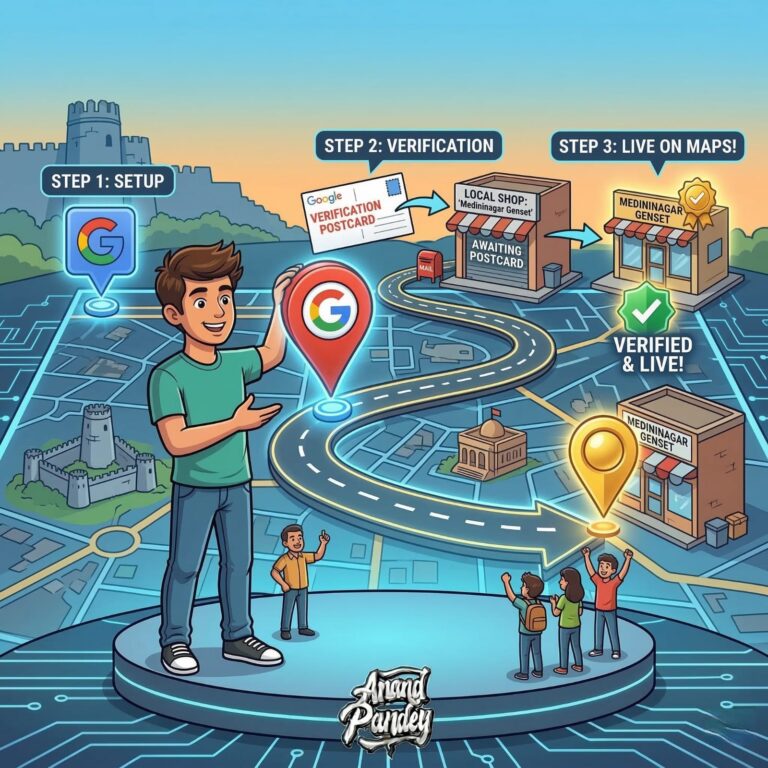
How to Verify Your Google Business Profile
Verification is the step that makes your profile go live and visible on Google. Until your profile is verified, it will not appear in search results or on Google Maps. This step is non-negotiable – you must complete it.
Verification Methods Google Offers and Which One to Choose
Google offers several verification methods depending on your business type and location. Here are the options you may be presented with:
- Postcard by mail: Google sends a physical postcard to your business address in Medininagar with a 5-digit verification code. This is the most common method for new businesses and typically takes 5 to 14 days to arrive.
- Phone call or SMS: Google calls or texts your registered phone number with a verification code. This is faster and is available for some business types.
- Email: A verification code is sent to your business email. This option is available for certain business categories.
- Video verification: Google may ask you to record a short video showing your business location, signage, and operations. This has become more common in 2025-26 as Google works to reduce fake listings.
- Instant verification: If your business is already verified on Google Search Console, you may get instant verification. This is less common for new businesses.
For most Medininagar businesses, postcard verification will be the primary option. Do not be discouraged by the wait – it is worth it.
Step-by-Step: Completing Your Postcard or Video Verification
For postcard verification:
- After submitting your profile, Google will show you a confirmation screen saying the postcard is on its way.
- Do not make any major changes to your address during this period, as it may reset the verification process.
- Watch for a white postcard from Google in your mailbox. It will be addressed to your business at your Medininagar address.
- Once received, log back into business.google.com, click “Verify” and enter the 5-digit code from the postcard.
- Your profile will then go live on Google.
For video verification:
- Google will send you a link or prompt you to record a video within the GBP dashboard.
- The video should show your business signage, the surrounding area (street, building), and proof of operation (you working, products, equipment).
- Record in one continuous shot without cuts. Google’s reviewers watch for authenticity.
- Once submitted, Google typically reviews video verifications within a few days.
Pro Tip: For video verification, film during daylight hours and make sure your business signboard is clearly visible in the video. Speak naturally if you choose to narrate – reviewers appreciate authenticity over perfection.
What to Do If Verification Fails or Gets Delayed
Verification issues are more common than you might think. Here is what to do in each situation:
- Postcard never arrived: If your postcard has not arrived after 14 days, log into your GBP dashboard and request a new one. Make sure your address is entered correctly before requesting again.
- Code expired: Postcard codes expire after 30 days. If yours has expired, simply request a new postcard from your dashboard.
- Video verification rejected: If Google rejects your video, they will usually tell you why. Common reasons include unclear signage, the location not matching your address, or a video that appears edited. Re-record following their feedback and resubmit.
- Profile suspended during verification: This can happen if Google flags something inconsistent in your profile. Do not panic. Log into your GBP dashboard and look for a “Request Review” option. Ensure all your information is accurate before submitting the review request.
Never create a second GBP if your first one is pending verification or has been suspended. Multiple listings for the same business violate Google’s policies and can result in both profiles being permanently removed.
What to Do Immediately After Your Profile Gets Verified
The moment your profile is verified, it goes live on Google. But your work is not quite done yet. There are a few important checks to complete right away to make sure everything is accurate and your profile is presenting your Medininagar business correctly.
Confirming All Your Business Information Is Correct
Go to your GBP dashboard and review every single piece of information on your profile as it now appears publicly. Check the following:
- Business name is spelled correctly and matches your official name
- Address is accurate and the map pin is in the right location
- Phone number is correct and working
- Business category is the right one for your services
- Business hours are accurate for every day of the week
- Website URL (if added) goes to the correct page
If anything is incorrect, edit it immediately from your dashboard. It is much easier to fix errors now than after customers have already seen wrong information.
Making Sure Your Profile Is Visible on Google Maps
After verification, open a new browser tab and go to Google Maps. Search for your business name along with “Medininagar.” Your business should now appear as a pin on the map with your profile details showing on the left side.
Also do a Google Search for your business name. You should see your GBP knowledge panel appear on the right side of the search results – this is the box showing your name, address, phone number, hours, and map location.
If your profile does not appear immediately, do not worry. It can sometimes take 24 to 72 hours after verification for your profile to become fully visible across all of Google’s platforms. If it still does not appear after 72 hours, check your GBP dashboard for any pending actions or notifications.
Pro Tip: Search your business from a different device or in incognito mode to see exactly how it appears to customers. This gives you an accurate view without your own browsing history influencing the results.
Next Steps - How to Optimise Your GBP for Better Rankings in Medininagar
Setting up your GBP is the foundation – but it is just the beginning. A verified profile is like opening a shop and putting up a signboard. It gets you on the map, but to rank higher than your competitors and consistently attract customers, your profile needs to be actively optimised.
Optimisation involves adding a keyword-rich business description, uploading geotagged photos from your business location, building a consistent system for collecting customer reviews, using Google Posts to stay active, and tracking your profile performance through Google Business Insights.
Each of these activities is a full topic on its own, which is why we have created a separate, in-depth tutorial specifically on optimising your GBP for local SEO in Medininagar. We strongly recommend reading it as your very next step after completing this setup.
Quick Tips Before You Hit Publish on Your GBP
Expected Growth of SEO Services in the Next 5 Years
Before you finalise your profile, run through these setup-specific tips to make sure you have not missed anything critical:
- Use a local Medininagar phone number: Avoid toll-free or national numbers. A local phone number builds trust with Medininagar customers and signals to Google that you are genuinely a local business.
- Double-check your spelling before submitting: Typos in your business name or address are surprisingly common and can cause verification delays and customer confusion. Read everything twice before clicking Submit.
- Drop your map pin with precision: Zoom into the map as far as possible and place the pin on the exact building or entrance of your business – not just somewhere in the neighbourhood.
- Do not use a virtual office or fake address: Google actively verifies business locations. Using a virtual office address or a residential address that does not match your actual operations can result in your profile being suspended.
- Choose a storefront setup if you have any physical address available: Even for service-area businesses, a physical location GBP tends to rank better in competitive Medininagar searches than a service-area-only profile.
- Keep your login details safe: Store your business Google account email and password securely. Losing access to your GBP account is one of the most frustrating problems a business owner can face.
Need Help Setting Up or Growing Your Business on Google?
Setting up your GBP is just the first step. If you want your Medininagar business to consistently rank at the top of local search results and generate leads on autopilot, our SEO services in Medininagar are built exactly for that.
We handle everything – from GBP optimisation and local keyword targeting to full SEO marketing strategies that get your business found by the right customers at the right time.
Get in Touch
We'd love to hear from you. Fill in the details below and we'll get back to you shortly.
✅ Thank you! Your message has been sent. We'll be in touch soon.
⚠️ Something went wrong. Please try again or email us directly.